
Guide
How Addons Work in Nuvio TV: Adding Your First One, Safely
Addons explained in plain language: what they do, how to add one, how the app asks them for streams, and how to judge one before you trust it.

GUIDE INDEX On this page
Addons sound technical until someone explains them plainly, which is what this guide does, using the same first addon walkthrough we use in testing for Nuvio TV. Five minutes here saves an evening of confusion later.
What an addon actually is
An addon is a small plugin that answers one question: where can this title be streamed? The app itself provides the catalogue, the library and the player, and hosts no movies or shows. When you press play on a title, the app asks your installed addons, in an order you set, and presents the streams they offer. Choose one, and the built in player takes over. That separation is the whole architecture, and once it clicks, every menu in the app makes sense.
Adding your first addon
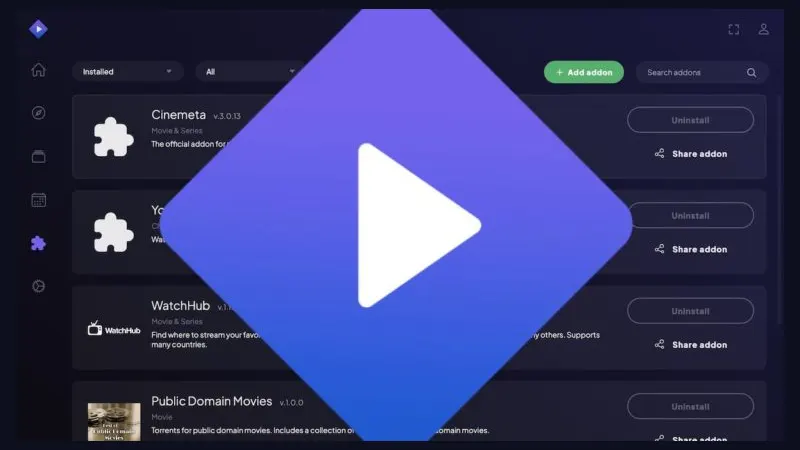
Open the addons area in settings, choose to add one, and enter the details the addon's own maker publishes for it. Take your time with that step: the address or identifier has to be exact, character for character, because the app cannot guess a near miss. When it appears in your installed list, make sure it is enabled, then open any popular title and press play. A healthy addon answers within moments with a list of streams.
One addon or several?
Start with one. Learn what its results look like, how it labels quality, and how it behaves on older titles. Then, if a favourite series is thinly covered, add a second as backup. Ordering matters once there are two, and the addon priority guide explains how to arrange them so the fastest answers come first. More than three is rarely better; it is usually just a longer wait dressed as choice.
Judging an addon before you trust it
Trust is earned in small tests. Does it answer quickly? Are the labels honest about quality? Does it behave the same on a weekday evening as at midnight? And who makes it: an addon with a public home, a known name and signs of maintenance deserves more confidence than an anonymous one passed around as a file. The full checklist lives in our safety guide for the app and its addons. If an addon disappoints, remove it; removal is quick and leaves nothing behind.
When a title shows no streams
No streams usually means the addon has no source for that title, not that the app is broken. Try another title to confirm the addon answers at all, check the addon is still enabled, and consider a second addon for coverage. New viewers setting up from zero should pair this guide with the beginner first evening plan, which sequences addon setup into a full, working first night.
Your first addon, your rules
By now the shape of Nuvio TV should feel clear: Nuvio TV provides the stage, and your addons provide the streams. Add one to Nuvio TV carefully, test it honestly, and remove it without regret if it disappoints. Viewers who learn that small discipline early enjoy the app for years without ever fighting it.
Quick Answers
Does the app include any addons?
The app is a clean stage: catalogue, library and player. Addons are installed by you, from their makers.
How many addons should I install?
One to start, two or three once you know what coverage you need. Ordering matters more than quantity.
Can I remove an addon?
Yes, at any time, from the same settings area where you added it.