
Guide
Nuvio TV for Android TV: The Setup That Makes the Big Screen Feel Right
Set up Nuvio TV on Android TV properly: install, remote navigation, poster rails, Continue Watching, and keeping phone and TV in sync.

GUIDE INDEX On this page
The television is where a media center either proves itself or gets uninstalled by Friday. This setup follows the testing behind Nuvio TV for Android TV and gets the big screen right the first time, remote in hand.
Install and first launch
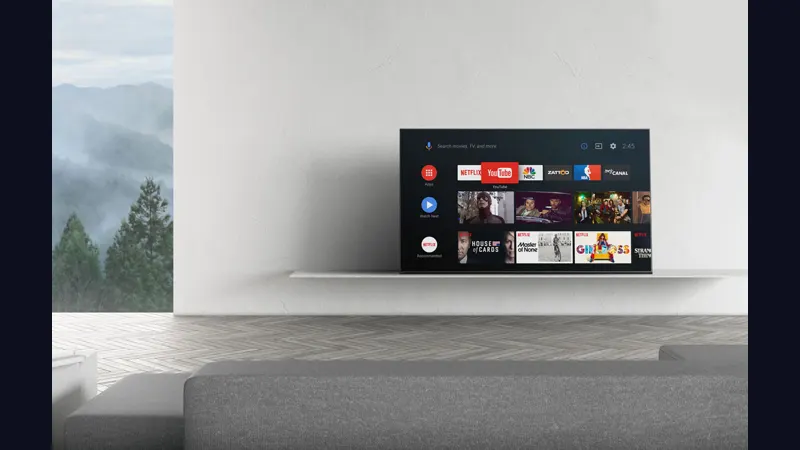
Install the universal file on the TV the same way you would on a phone, allowing installs from your file manager when asked. If the file is not on the television yet, start with the phone and TV install guide, which covers moving the file across. On launch, the app opens in its TV layout automatically: a left navigation rail, large backdrops, and poster rows built to be crossed with a D-pad rather than a thumb. Give the first launch a minute to fill its artwork before judging speed.
Learn the remote geography
Spend five deliberate minutes on navigation. Down moves through rows, right sweeps a poster rail, select opens a title, back returns one level and remembers where you were. Focus is always visible, which sounds basic until you have used apps where it is not. Viewers who want the full remote vocabulary should read our Android TV remote and D-pad guide, because half of TV app frustration is really unlearned navigation.
Make Continue Watching earn its place
The top rows decide whether the TV feels personal. Watch one episode fully on the television and the next evening should greet you with the following episode in Continue Watching, artwork large, progress honest. Add titles to your library from their details pages so series you follow stay gathered in one place. Library habits that work on both screens are covered in the library and watch progress guide.
Sound, picture and the honest limits
Prefer a wired network connection if your TV sits near the router; poster rails and high quality streams both notice Wi-Fi congestion. On modest TV hardware, let a row finish loading before sweeping it at speed. The interface stays smooth when you navigate like a viewer rather than a tester, and for most households that difference never appears again after the first evening.
Keep phone and TV as one system
The real prize is continuity. Start a film on the sofa, finish it on the phone in another room, and progress should follow. Connect a sync service once and both screens share history and watchlist, so the TV stops being a separate island. That two screen habit is the reason many households choose this app, and it is worth setting up on day one rather than month three.
The big screen test
A television setup passes when nobody in the room thinks about it. With Nuvio TV for Android TV set up this way, the rails in Nuvio TV load, the remote in Nuvio TV feels predictable, and Continue Watching becomes the front door it should be. That invisibility, night after night, is the whole prize.
Quick Answers
Do I need a separate TV version?
No. One universal file detects the television and opens the TV interface.
Why do poster rails load slowly at first?
Artwork caches on first use. After the first evening, rows fill almost instantly.
Can children use the TV interface easily?
Yes. Navigation is a simple rail and rows system, and focus is always clearly visible.