
Guide
Nuvio TV Casting Guide: Send Phone Playback to the TV Without Dropouts
Cast Nuvio TV from an Android phone to Chromecast or Android TV: the same Wi-Fi check first, step by step casting, subtitles and sound while casting, and fixes when the cast button vanishes or playback drops.

GUIDE INDEX On this page
Casting is the easiest way to move an evening from a small screen to the big one. You browse on the phone in your hand, the television does the playing, and the phone turns into a remote you already know how to hold. Nuvio TV, usually just called Nuvio, suits that pattern well: pick a title on the phone, send it to the television, and settle in. This Nuvio TV casting guide walks through the whole move, from the one network check that prevents most failures to the fixes for a missing cast button, and it leans on the television setup in Nuvio TV official site guides wherever the big screen side needs detail.
What casting changes about movie night
When Nuvio TV casting works as intended, the television plays the stream directly while the phone only sends commands: play, pause, seek, and subtitle choices. That split is why casting feels lighter than mirroring. The phone can take a message, dim its screen, or sit on the armrest without disturbing playback, because the heavy work happens on the television end. Browsing also improves, since typing a title and scrolling poster rows is faster with thumbs than with a television remote. If the television already runs the app itself, the Nuvio TV Android TV setup is the steadier nightly route, and casting is the guest mode for the nights when the phone found the title first.
The same Wi-Fi check, first
Nearly every failed cast starts with the network, not the app. The phone and the television or dongle must sit on the same home network, and on routers that broadcast two network names, they must sit on the same one of the two. A phone on the guest network cannot see a dongle on the main network, and a phone that silently jumped to mobile data cannot see anything at all. Open the Wi-Fi settings on both ends, confirm the names match letter for letter, and switch the phone off mobile data for the test if you are unsure. Two minutes here saves twenty minutes of restarting things that were never broken. Get this check right and Nuvio TV casting usually just works.
Cast to Chromecast, step by step
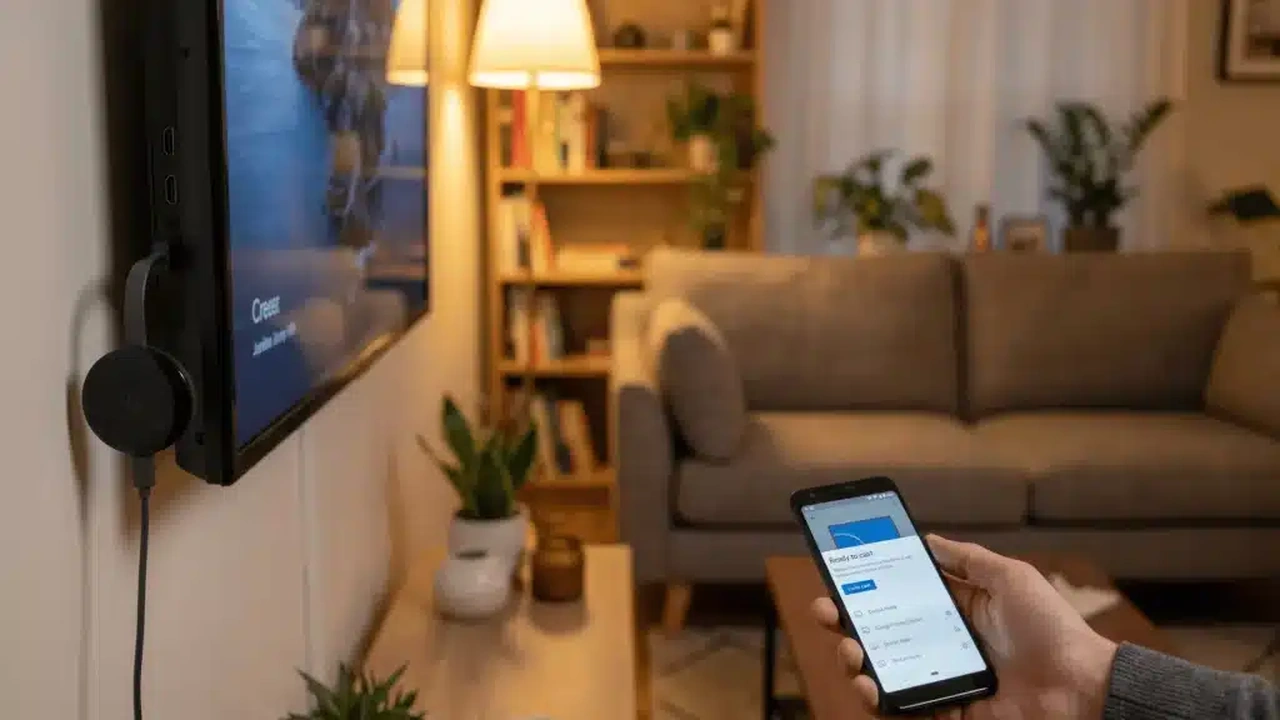
With the network confirmed, plug the Chromecast into the television and switch the television to that input, then open Nuvio TV APK on the phone and start the title you want to watch. Look for the cast symbol in the player controls or in the phone system cast sheet, tap it, and choose the Chromecast name from the list that appears. The television should pick up the title within a few seconds, and from that moment the phone controls playback: pause with one tap, seek with a drag, and adjust volume from the phone buttons. If the television asks you to choose a profile or confirm the stream, answer on the television once and the phone takes over again. Leave the phone on the same network for the whole session, since the phone keeps telling the television what to do next. That first successful cast is Nuvio TV casting at its simplest, and every later session repeats the same short pattern.
Cast to Android TV without a dongle
Many Android televisions carry a built in cast receiver, so no dongle is needed at all. Wake the television, make sure it is on the home network, then open the phone quick settings panel and look for the cast or screen share tile, which carries a slightly different name on different phone brands. Choose the television from the list and the phone screen appears on the big screen, with Nuvio TV playback carried along inside it. This mirrored form of Nuvio TV casting is a little heavier than true casting, because the phone keeps rendering the picture, so keep the phone charged and its screen awake. For a film night it works well, and for a quick episode it is often faster than hunting for a dongle in a drawer.
Subtitles and sound while casting
Nuvio TV casting handles subtitles differently across its two forms, so set them before you lean back. With true casting, the subtitle choice you make on the phone travels to the television, while with screen mirroring the subtitles simply ride along inside the mirrored picture. Either way, the readable size and style are worth fixing once on the phone, and the Nuvio TV player settings guide covers subtitle size, timing, and skip markers in detail. Sound follows the same split: true casting plays through the television speakers or soundbar, while mirroring plays whatever the phone sends, so check that the television volume, not the phone volume, is the one you are raising. If dialogue sounds muffled, switch the television sound mode to its speech or dialogue setting before blaming the stream.
When the cast button does not appear
A missing cast button has a short list of causes, and they are worth working in order. First, repeat the network check, since a phone that drifted onto a guest network or mobile data hides every cast target at once. Second, close the Nuvio TV app fully and reopen it, then restart the dongle or television, since Nuvio TV casting discovery is the part that goes stale while playback itself stays fine. Third, switch off any VPN on the phone for the test, because a VPN tunnels the phone away from the home network and cast discovery cannot cross that gap. Fourth, on recent Android releases, check that the app holds the nearby devices permission, which gates discovery of televisions and dongles. One of these four clears the problem in most homes, and the one that fixed it is worth remembering for next time.
When playback drops or drifts out of sync
Once Nuvio TV casting starts, drops and drift are usually network trouble wearing a casting costume. Move the phone closer to the router for the test, or move the evening to the less crowded band of the home network, and if the television sits far from the router, a wired television connection beats every settings tweak. When the picture still stutters, work through the Nuvio TV buffering fixes in order, since stream choice and network load explain most stutter before casting ever enters the picture. Keep the phone charged and on the same network through the film, because a phone that sleeps onto another network or runs flat can pause a mirrored session mid scene. True casting forgives a locked phone screen; mirroring does not, so knowing which form you are using tells you how much phone care the evening needs.
A calm casting routine for every evening
The whole habit fits into one minute once it is learned. Confirm the phone and television share a network name, wake the television to the right input, set subtitles on the phone before casting, and plug the phone into charge if the film is long or the session is mirrored. Keep the television remote nearby for volume and input changes, and keep the phone nearby for pause and seek, since each remote is best at its own half of the job. Nuvio TV casting stays simple when the network check comes first and the settings are fixed once rather than fiddled with nightly, which leaves the evening for the film itself.
That is the complete shape of Nuvio TV casting: one network, one cast tap, and a phone that stays in charge of playback while the television does the showing. Start with the network check, choose true casting when the button offers it, fall back to mirroring when it does not, and let the fixes above handle the rare night when something vanishes or stutters. Done this way, the phone stops being the screen you squint at and becomes the remote you barely notice, which is exactly what a film night wants.
Quick Answers
Why does the cast button not appear in Nuvio TV?
The phone and the television or dongle are usually on different networks, often a guest network or mobile data. Match the Wi-Fi names, close and reopen the app, restart the dongle or television, switch off any VPN for the test, and check the nearby devices permission on recent Android releases.
Can I cast Nuvio TV to a television without Chromecast?
Yes, if the television is an Android TV with a built in cast receiver. Use the cast or screen share tile in the phone quick settings and choose the television. This mirrors the phone screen, so keep the phone charged and awake during playback.
Do subtitles work while casting Nuvio TV?
Yes. With true casting the subtitle choice made on the phone travels to the television. With screen mirroring the subtitles ride along inside the mirrored picture. Set subtitle size and style on the phone before casting.
Why does casting stop when my phone locks or takes a call?
True casting keeps playing when the phone locks, because the television plays the stream. Screen mirroring depends on the phone, so a lock, a network switch, or a flat battery can pause it. Check which form you are using before changing settings.